
How to connect to the Projector using a Windows laptop/desktop:
- On your PC, press Windows logo key + K.
- Select the name of your projector/eBoard from the list of available connections. The name is shown on your Projector. (Projector/eBoard's are named by the room location)
How to change screen display settings when connected to a projector:
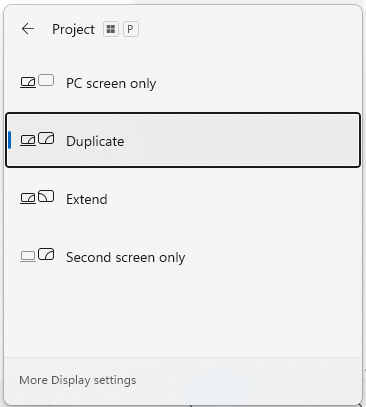
- On your PC, press Windows logo key + P.
- Choose your desired screen configuration:
PC screen only (Sets display to PC screen only)
Duplicate (Mirrors PC screen to projector)
Extend (Separate applications on PC and Projector at the same time)
Second screen only (Sets display to PC screen only)
In the example below we will mirror the laptop/desktop screen to the Projector or eBoard by selecting Duplicate:
Note: If you are experiencing connectivity issues to the classroom projector, please restart your laptop to sync wireless connection to the projector again. If restarting your laptop does not fix the connection issue, please log a support ticket at https://ashs.freshdesk.com for technical support.